
Close and delete a project
Learn how to close and delete a project in the CONTENTdm Project Client.
Closing a project saves any saved items in the project spreadsheet and your project settings. The project can be reopened for later work. See Open a project for more information.
Deleting a project deletes all settings and items in the project spreadsheet and removes the project name from menus that let you access projects.
Note: Deleting a shared project removes access to the project for all users, not just from your Project Client workstation.
Close a Project
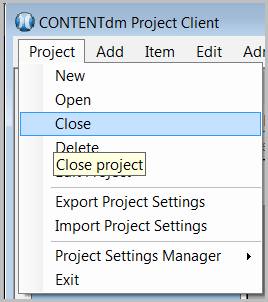
From the Project menu, select Close.
Delete a Project
You must close the project before you delete it.
Note: You can be working on a different project, but the project you intend to delete must be closed.
- From the Project menu, select Delete.
- The Delete Project Dialog displays.
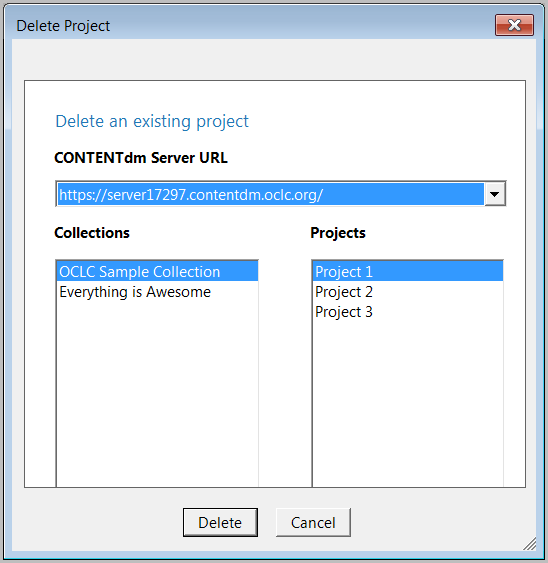
- From the list of projects for the selected collection, select the name of the project to delete.
- Click Delete. A confirmation dialog displays to confirm the deletion.
- Click OK to confirm and delete the project.