Process requests
Select whether you are using the Legacy interface or the Modernized interface in WorldShare Interlibrary Loan.
Process New For Review requests
Follow the instructions below to process New for Review requests.
To process New for Review requests:
- From the Borrowing Requests category, click New For Review. The initial categories of Not Reviewed and Reviewed are listed.
- Requests under Not Reviewed are requests that have not been seen by your staff. These requests originate from a source outside of your system.
- Requests with a status of Reviewed have been saved by your staff, using the Save For Review feature.
- Click the request ID or Title to display a request.
- Review and confirm the information in the Request Details section.
- If the citation needs to be verified, click the magnifying glass icon, next to the Title, Author or standard number fields, to search WorldCat via Discover Items. A contextual search is launched for the terms selected, and the Results screen appears.
- A My library catalog link will redirect to the library's online catalog URL as set up in the Online Catalog section of the WorldCat Registry module in the OCLC Service Configuration. The following must be entered in the Online Catalog section in order for the My library catalog link to resolve: Online Catalog Direct to ISBN, Online Catalog Direct to ISSN, or Online Catalog Direct to OCLC Number.
- The My library catalog link can take 24 hours to populate.
- Refer to WorldCat Registry, Configure links to your online catalog.
- On the Results screen, you have two options:
- Click the item you want to request. Bibliographic information appears. If applicable, click Apply data, OR
- Click a link to holdings, or use a Custom Holdings Path or OCLC profiled Group. On the Holdings screen, add lenders to the Lender String, then click Update request.
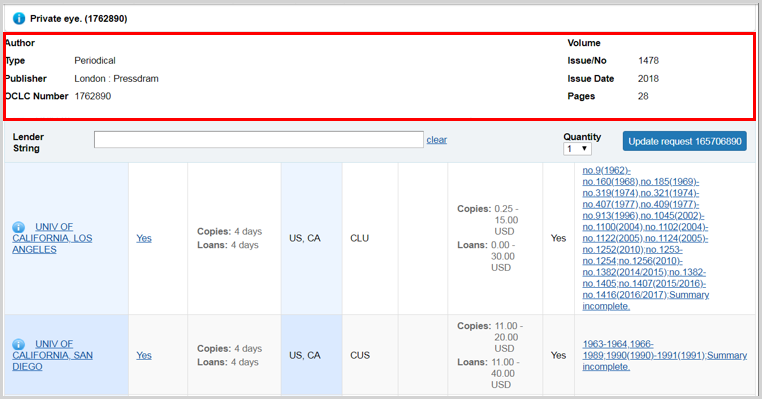
The citation information for copy requests will display at the top of the Holdings screen and will remain as you scroll through potential lenders. Compare the lenders holding information in the Holdings column to the citation information of the copy request to be sure the lender has the exact volume needed to fulfill the request.
- The request form appears, and the bibliographic data is updated.
- Apply your constant data, and click Send Request.
- A confirmation message appears and the request is updated.
Holdings screen
Display holdings

To display holdings, use one of the following options:
- Click State Holdings, Regional Holdings, or All Holdings.
- State Holdings: Holdings within your state displayed in alphabetical order by institution name.
- Regional Holdings: Holdings from states or provinces that border your state. Bodies of water are not considered when determining borders. Your institution's state or province is listed first, followed by other states or provinces in alphabetical order.
- All Holdings: Your institution's state or province is listed first, followed by other states or provinces in alphabetical order.
Note: A line separates holdings for each state and province. Within each state or province, holdings are listed alphabetically by institution name
- To display holdings from a Custom Holdings Path or OCLC profiled group, select that option from the Filter by drop-down list. Click Go to see results based on the selected filters. See Filter holdings to build a lender string for more information.
Filter holdings to build a lender string
When viewing holdings for an item, you can filter the list of holdings to assist in building a lender string. If you select both a Custom Holdings Path and a year or volume, the lender string will automatically populate with libraries from the first section of the display.
Filter by Custom Holdings Path
You can filter holdings by a custom holdings path when the item requested is a book or other monograph as well as for copy requests where:
- The patron did not specify the year or volume.
- The holding libraries do not specify their year or volume-level holdings.
- Select a custom holdings path from the drop-down list.
- Click Go. The results list identifies the group of the holding library in the Group column. Groups are also delineated by a heavy gray line.
- If you select both a Custom Holdings Path and a year or volume, the lender string will automatically populate with libraries from the first section of the display.
- Click Yes in the Supplier column to add lenders to the string. You can add up to 15 lenders from the results list.
Note: Custom Holdings Paths which contain Profiled Groups can only be completely applied via automations configured in the Automated Request Manager. If the Custom Holdings Path has been manually applied, a warning appears. To build a partial lender string from the current Custom Holdings Path that does not include symbols from the Profiled Group, click OK. Click Cancel to close this window and either manually route this request to automation or select a different Custom Holdings Path. See Custom Holdings Path for more information.
Filter with Year and Volume
When viewing holdings for a journal or other periodical, you can filter the list of holdings by year or year and volume. This data is populated from the lending library's local holdings record or knowledge base holdings.
- Enter a year in the Year field
Or
Enter a year in the Year field and a volume in the Volume field. - Click Go.
- The results list is split into three sections, delineated by a heavy gray horizontal line:
- Libraries that hold the year/volume
- Libraries where local holdings are not available
- Libraries that do not hold the year/volume
- If you select both a Custom Holdings Path and a year or volume, the lender string will automatically populate with libraries from the first section of the display.
- The results list is split into three sections, delineated by a heavy gray horizontal line:
- Click Yes in the Supplier column to add lenders to the string. You can add up to 15 lenders from the results list. A lender string will be added based on libraries that hold the year/volume.
Holdings screen view
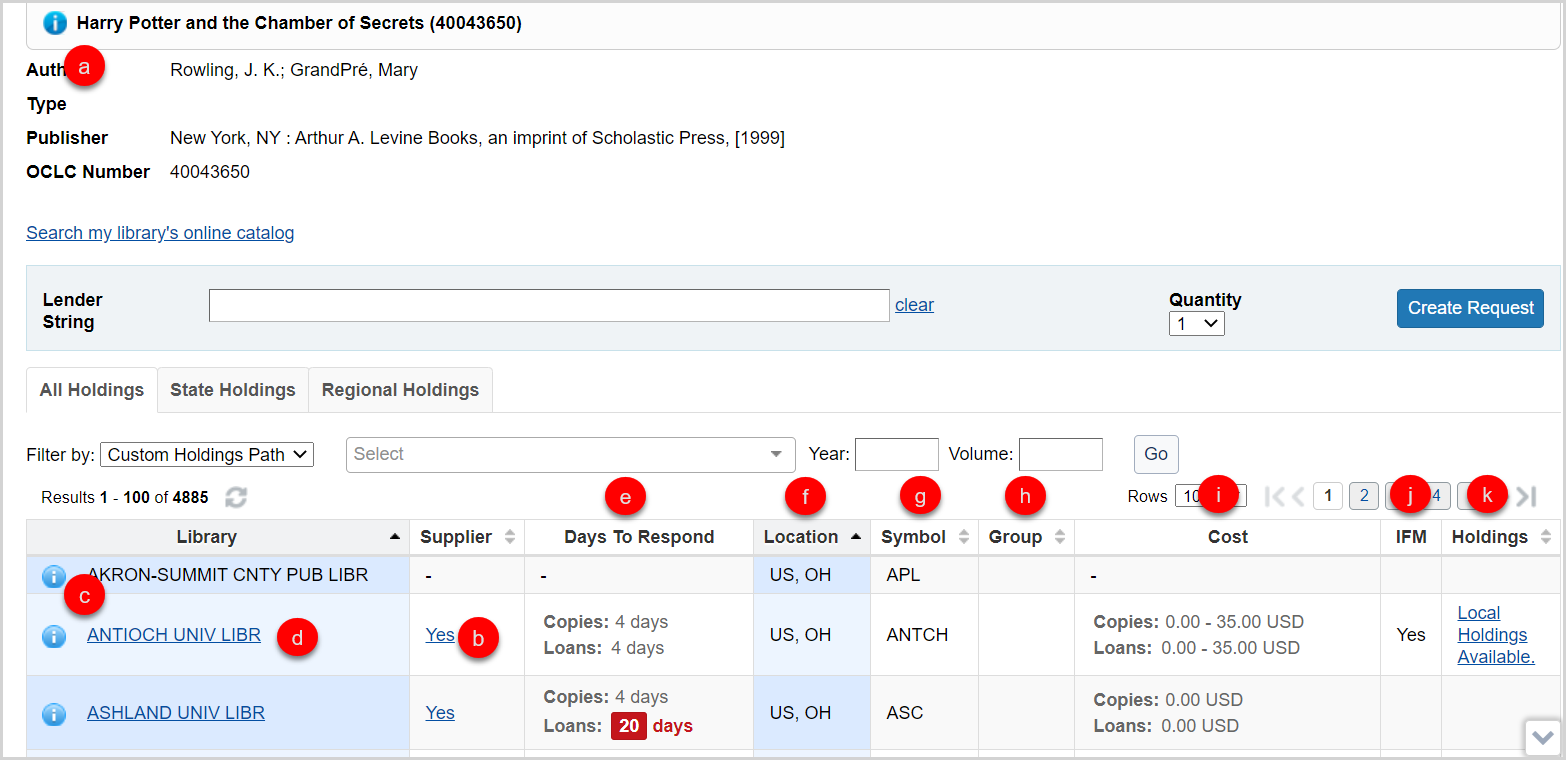
On the Holdings screen, you also have several options:
- Hover your cursor over the information icon (
 ) next to the title of the requested item to see brief bibliographic data.
 - Click Yes (or anywhere in the Yes box) in the Supplier column to add a Supplier to your lender string.
- Once a lender has been added to the lender string, the hyperlink in the Supplier column will no longer be clickable. If a lender is removed from the lender string, your ability to click on Yes in the Supplier column is restored. This selection status will be maintained as you move through all holdings lists.
- Yes displays if the library is a current supplier. If they are not, a dash displays in the Supplier column.
- Click the information icon (
 ) next to the library’s name to go the OCLC Policies Directory and confirm a lender’s policies. The OCLC Policies Directory for the lender will open in a new window.
 - Click the library name to go to the library’s online catalog.
- This link is maintained in the WorldCat registry. For information about configuring your OPAC to display to other libraries and provide deep links to a specific OCLC number or other identifiers, see WorldCat Registry, Configure links to your online catalog.
- The following must be entered in the Online Catalog section in order for the OPAC link to resolve: Online Catalog Direct to ISBN, Online Catalog Direct to ISSN, or Online Catalog Direct to OCLC Number.
- This link is maintained in the WorldCat registry. For information about configuring your OPAC to display to other libraries and provide deep links to a specific OCLC number or other identifiers, see WorldCat Registry, Configure links to your online catalog.
- View suppliers’ Days To Respond. The Days to Respond indicates the number o fdays the library needs to respond to copy and loan requests.
- If an item is Held by your library, you will see the
 icon at the top of the Holdings screen, indicating that your library has a holding set on that item in WorldCat. You will also see this icon on the top of the Request work form.
- If an item is Held by your library, you will see the
- View the suppliers Location, which displays abbreviations for the country, and state or provence.
- The Symbol column shows the institution's OCLC symbol.
- The Group column populates when you filter by a Custom Holdings Path in order to show which of your Custom Holdings Groups contains a potential lender.
- The Cost column indicates what the library charges for copies and loans as entered in the the OCLC Policies Directory.
- The IFM column will indicate Yes if the library participates in Interlibrary Loan Fee Management.
- View suppliers' Holdings information. This data is populated from the lending library's local holdings record or knowledge base holdings. If the information has been provided by the library, the column will display Local holdings available or a summary statement of specific volumes and issues held.
- Click on the text in the column to view additional holdings details.
- The resulting Holdings screen will list the Collection and Coverage for the knowledge base holding.
- Local Holdings Records will list the Format, Location, and Holding information.
- The coverage information displayed in the Holdings information sometimes comes from the embargo_info field of the KBART file in the WorldCat knowledge base. See Embargo and moving wall of coverage for more information.
The citation information for copy requests will display at the top of the Holdings screen and will remain as you scroll through potential lenders. Compare the lenders holding information in the Holdings column to the citation information of the copy request to be sure the lender has the exact volume needed to fulfill the request.
- Click on the text in the column to view additional holdings details.
View Holdings details
If the information has been provided by the library, electronic serials display the exact coverage statement from the WorldCat knowledge base and a Local Holding Record (LHR) summary displays for print serials in the Holdings column.
Click on the summary text in the Holdings column to view additional details about the WorldCat knowledge base or LHR holdings for the title.
- The resulting Holdings detail screen will list the Collection and Coverage for the knowledge base holding.
- Coverage statements are displayed in the Holdings column for each individual knowledge base collection and are not deduplicated if the holding appears in multiple collections. After clicking on a coverage statement, the resulting Holdings detail screen will list the name and coverage for each knowledge base collection containing the serial.
- Local Holdings Records will list the Format, Location, and Holding information.
Note: The citation information for copy requests will display at the top of the Holdings screen and will remain as you scroll through potential lenders. Compare the lenders holding information in the Holdings column to the citation information of the copy request to be sure the lender has the exact volume needed to fulfill the request.
Process Open Access requests
Follow the instructions below to process Open Access requests.
To process Open Access requests:
- On the left navigation, click Discover Items.
- Search for a journal or magazine title by typing your search terms in the box provided.
- Click Search. Matching results appear, along with holdings display options.
- On the Results screen, click View Now. Note: The resource will open in a new window.
- In the WorldShare ILL window, click Regional Holdings from the Results screen.
- On the Holdings screen, click Create Request. Note: The View Now link is also available on this screen.
- On the request workform, click Save For Review.
- A confirmation message appears and the request appears under the category Borrowing Requests > New For Review.
- Click the Request ID in the confirmation message.
- Or access the request from the Borrowing Requests > New For Review category.
- Click the Email button and fill out the form to send the patron the open access link for the item requested.
- Open the request and select Open Access from the Change Fulfillment Type list to record fulfillment of the item. A confirmation message appears, and the request is updated to Closed/Open Access.
It is important to email the patron the Open Access link to the request before clicking Open Access because when the request is updated to Closed/Open Access, the patron information attached to the request will be cleared.
Requests filled via Open Access will be included in monthly statistical reporting.
Receive items (from In Transit status)
Follow the instructions below to mark an item as received.
To mark an item as received:
- From the Borrowing Requests category, click In Transit.
- Click the request ID or Title to display a request. Note: Request queues where batch processing is available include an icon in the left navigation sidebar.
- Click Mark as received.
- A confirmation message appears and the request appears under the category Borrowing Requests > Received > Received/In Use.
Renew item (from Received status)
Follow the instructions below to renew a request item.
To renew an item:
- From the Borrowing Requests category, click Received.
- Click the request ID or Title to display a request.
- Enter a Desired due date.
- Click Renew item.
When suggesting a desired due date, be sure to consult the lender’s renewal policies by scrolling down in the request form and clicking the question mark icon (
 ) to open the lender’s Policies Directory profile.
 - A confirmation message appears and the request appears under Borrowing Requests > Received > Renewal Requested.
Mark a request as Lost
If a received item is missing, mark the request as Lost to alert the Lending library.
To mark an item as Lost:
- From the Borrowing Requests category, click Received.
- Items can be marked as Lost from the Received/ In Use, Renewal Requested, Renewal Approved, Renewal Denied, Overdue, and Recalled queues.
- Click the request ID or Title to display a request.
- Select Lost on the request detail screen.
The request status is updated to Lost and the request moves to the Received but Missing queue for both the borrowing library and the lending library.
If the item is recovered, return or renew the item. See Return items for more information.
Unfilled requests
If a request is not filled by any of the lenders in the Lender String, the request will age to Unfilled. Options for Unfilled requests include Resend Request, Change Fulfillment Type, or Cancel Request.
To resend the request:
- Click on the request ID of the unfilled request.
- Under Lending Libraries, enter additional lenders into the Lender String.
- The History appears below to indicate the lenders who have previously received this request and their response.
- Optional. Edit the bibliographic data in the Request Details, Borrowing Notes, Billing Notes, or IFM Maximum Cost.
- Search options appear for Title, Author, ISSN, ISBN, and OCLC Number fields.
- The Preferred edition field is not editable.
- From the request screen, click Resend Request.
- The request will move to Awaiting Response.
You can change the Fulfillment Type of an unfilled request to a Purchase Request.
To change the fulfillment type of the request:
- Locate the request you want to change.
- In the request, click Change Fulfillment Type and select Purchase Request.
- The request moves to the new fulfillment type queue.
Note: Whilst the Cancel Request button is still available for these requests, it is not necessary to click on this button as the request has already been closed. If clicked, it will result in the request status being updated to Closed (cancelled). This request will then be double-counted in OCLC Usage Statistics - Borrower Activity Overview Report as both an unfilled and a cancelled request.
Respond to conditionals from lenders (from Produced status)
Follow the instructions below to respond to conditionals.
To respond to conditionals:
- On the left navigation, click Borrowing Requests.
- Click Conditional.
- On the Conditional screen, review the Conditions column to see the lender’s conditions.
- Click the request ID or Title to display a request.
- If the lender has requested alternate terms, such as an increase in max cost or the use of IFM, and you agree to the terms, update those details within the request. You must do this before clicking Yes; otherwise, the terms of your original borrowing request still apply.
- Respond to the Lender’s condition with Yes, No, or Cancel Request.
- If you click Yes, the request returns to the Lender and appears under Lending Requests > Can You Supply? > Conditions Accepted.
- If you click No, the request goes to the next Lender in the lender string.
- If you click Cancel Request, the request is canceled.
- A confirmation message appears.
Note: Update the request as needed before saying Yes to the condition. If there is confusion or special circumstances, use the lender's contact information in the request or form the Policies Directory to communicate with the lender. There is no way to add a note when responding to a lender's conditional response within the request.
Watch a video
New For Review ILL requests
Run time: 9:44
New For Review is a category in OCLC Interlibrary Loan service for requests routed by the system or saved by review by staff at the library to be approved and processed at a later time. This video covers how ILL requests arrive at the New For Review category and how a staff member at the library can process the request.
Process ILL requests as a Borrower
Run time: 10:17
This video covers the steps a staff member at a borrowing library takes after an ILL request is placed in the system and needs to be processed and updated.