Off-system lending by request form
Overview
Administrative staff at Tipasa lending libraries can configure a web-based request that form allows off-system borrowers to enter requests directly into the library's off-system request queue. Once submitted, the requests entered in the form are routed to the lending library’s off-system lending queue and can be processed much like any other new lending request.
Staff members at off-system partner institutions must be given suitable user accounts before they can place requests with OCLC libraries. These accounts are linked to partner records that represent their institution within Tipasa.
Off-System request form workflow
- Configure the Lender's Off-System Request Form in the OCLC Service Configuration.
- If you are using Circulation Integration with Tipasa, these settings extend to off-system requests, allowing for these requests to update within your circulation system as well. Refer to Circulation Integration in the OCLC Service Configuration for more information.
- Create an off-system user account in WorldShare Admin.
- Link the off-system user account to their partner institution in the Address Book tab of the OCLC Service Configuration.
- Provide the off-system user with a username for their account, and a link to the Lender's Off-System Request Form.
- Off-system borrowers with user accounts can begin using the form to place requests.
To enter off-system requests into your lending queue manually, see Create off-system lending requests.
Configure Lender's Off-System Request Form for use by off-system borrowers
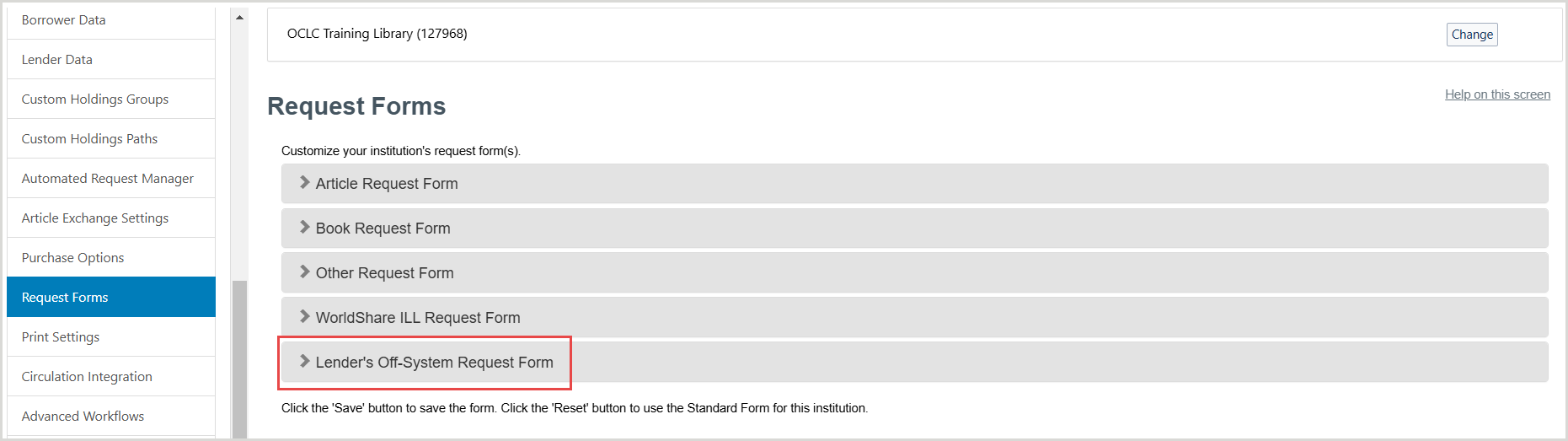
Before off-system users at partner institutions can begin using the request form, it must be configured. You can choose from a number of fields and options to create a form that fits your library. For information on the available fields, see Request Forms, Lender's Off-System Request Form.
- Sign in to the OCLC Service Configuration.
- Navigate to WorldShare ILL > Request Forms.
- Click Lender's Off-System Request Form to open the accordion.
- Configure the form as needed. See Request Form configuration.
- Click Save.
You can preview the form by clicking on Preview in the top right, or the display URL.
Off-system lending request form for groups
For Resource Sharing for Groups and WMS Groups
Library groups can optionally set up an off-system lending request form that is shared by the group.
- Administrative staff at a member library with Tipasa can configure and enable the form.
- The form includes a drop-down list of group lending libraries. By default, all group member libraries are included in the list.
- Off-system partners use the form to select a lending library and submit a request.
- The request is routed to the selected library’s off-system lending queue to be processed much like any other new request.
A member library can remove themselves from being listed as a lending library on the group's form. To remove your library from the list, navigate to the Request Forms module of the WorldShare ILL section of the OCLC Service Configuration. Deselect the option under Participation in Off-System Request Form and select Save Changes. Refer to Request Forms for more information.
The lending library list on the group's off-system lending request form includes group member libraries that have:
- Opted into the group's lending request form.
- Set their supplier status to Yes in the OCLC Policies Directory.
Create an off-system user account
Note: Only Tipasa staff with the WorldShare ILL Admin role can create or maintain user records.
- Click the WorldShare Admin tab.
- On the left navigation, under User Management, click New User.
- Because an off-system library will be treated as an external user, it is necessary to have the OCLC DB authentication for external users activated. Contact OCLC Support for more information.
- Because these user accounts represent staff working at an off-system partner institution, you only need to store enough information about them for the IDM system to identify their account. OCLC recommends filling in the following fields:
Section name Details Personal Information Include the relevant fields that will allow the administrative staff to identify the off-system user by name.
Address 1 It is recommended to include the name of the partner institution in the Address 1 field.
Delivery Notification Providing an Email Address for the partner user account is required, so that they are able to set/reset the password to their account.
Circulation The Barcode, Patron Type and Registration Date fields are required for WMS Libraries.
Identity Management A User Name for the user account is required.
Note: For WMS users, this will automatically prefill with the same value as the barcode.
- Click Create.
- On the confirmation window, click OK. The user account appears.
- Click Roles to open the accordion, select Edit and select the check box next to WorldShare ILL Partner. The user account should only have the Everyone role and the WorldShare ILL Partner role assigned. See Tipasa account roles.
- Click Save.
- To prompt the user to set a password for their account, click Set/reset in the Identity Management section. The user will receive an email prompting them to set a password.
- Send the user an email directly to inform them of the following:
- Their username, as this is not included in the password prompt email.
- The URL of your Lender's Off-System Request Form.
Link an off-system user with their partner institution
Use the WorldShare ILL tab of the OCLC Service Configuration to link the off-system user account you just created with their partner institution. To learn how to create a partner institution, see Address Book, Partners. Please note that only one user account can be associated with each partner institution, and a user account may only be linked to one partner record at any given time. If you would like to add a new user account to a partner institution, the old one must be unlinked first.
- Sign in to the OCLC Service Configuration.
- Navigate to WorldShare ILL > Address Book.
- Open the appropriate partner record.
- Scroll down to Borrower Account and click Add User.
- Search for the off-system user account you created by entering their user name or other identifiable information.
Note: Only user accounts with the WorldShare ILL Partner role assigned will appear in the search results.
- Choose the desired user account and click Apply.
- The Borrower Account section is updated to show the current user account associated with the partner institution.
Clicking on the username in the Borrower Account section will take you to the User Admin tab where you can locate and view the user's record.
Unlink an off-system user from a partner institution
- Sign in to the OCLC Service Configuration.
- Navigate to WorldShare ILL > Address Book.
- Open the appropriate partner user account record.
- Scroll to the Borrower Account section and select Remove link to user.