
Enable WorldCat Sync from CONTENTdm Administration
To enable WorldCat Sync in CONTENTdm Administration, you must have server permissions to add collections, delete collections, or administer user rights.
Access and view the server settings
- Open CONTENTdm Administration.
- Click the Server tab.
- Click Harvesting.
Configure WorldCat Sync settings for the Gateway collection
- Under WorldCat sync, click edit.
- Click Yes for Enable WorldCat sync. A list of collections displays.
- Enabling WorldCat sync makes the selected collection(s) available for the Gateway to work with. It does not initiate the mapping and loading process to WorldCat. You may choose to enable WorldCat sync for all your collections, or for selected collections. To enable WorldCat sync for all your collections, click all under enable.
- To enable selected collections for WorldCat Sync, select Yes from the drop-down menu for each collection that you want to enable.
Create collection descriptions for enabled collections
Create a collection description for the collections for which you want a collection-level record created and loaded into WorldCat. The collection-level record can be loaded alongside the metadata records for each item in your collection.
From the WorldCat sync settings page:
- Click add. The Collection description page displays.
- Create the collection-level metadata record.
- When done, click save to save the record.
After you create and save the collection-level metadata record, you can make further edits to it by returning to the WorldCat sync settings page and clicking edit.
Complete WorldCat Sync settings
On the WorldCat sync settings page:
- Click save. This will return you to the Harvesting page.
- If you have not yet registered with the Gateway, you will be prompted to register.
If you have already registered, you will be returned to the Server Settings page and will see a Login link to the Gateway.
Register with the Gateway (first-time users only)
From the Server Harvesting page:
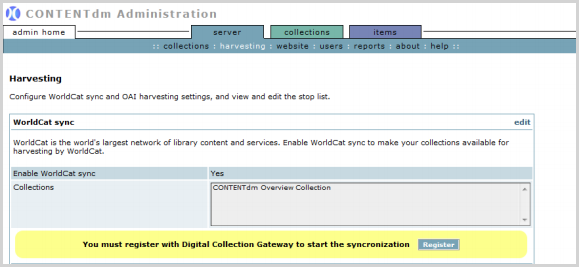
- Click Register in the yellow highlight box.
- Note that the registration page will automatically complete the Repository URL and CONTENTdm License Key fields.
- Enter your e-mail address.
- Create a user ID and password. The password must be at least three characters long. You will use these to log in to the Gateway.
Note: If you have an existing user ID and password with WorldCat.org associated with the e-mail address you entered above, you should enter your WorldCat.org user ID and password so the Gateway can be added to that user account. Only one user account is permitted for each e-mail address.
- Enter your organization’s OCLC symbol. This symbol indicates that your organization is associated with the records loaded into WorldCat.
- You can look up your OCLC symbol using the Directory of OCLC members. https://www.oclc.org/us/en/contacts/libraries/
- Enter a phone number.
- Create a name for your Repository.
- Click the Register button to complete your registration.
- If your browser blocks pop-up windows, it will return to the CONTENTdm Administration WorldCat sync settings page.
- If your browser does not block pop-up windows, a new browser window will open, displaying the Gateway.
Note: Only one user account (user ID and password) is assigned per CONTENTdm Server.