Privacy policy custom page
End-user privacy protection is an important consideration for any public website you manage. Your institution likely already has an established privacy policy that describes how end-user information will be stored and used. The EU’s General Data Protection Regulation (GDPR) has increased attention to the use and retention of all end-user information. Since GDPR applies to end users, your website will be subject to the regulations if you allow users from EU nations to view it.
Public disclosure of your privacy policy is a key factor in compliance with many data protection regulations and standards. You can use features in CONTENTdm to add a privacy policy to your website. There are two approaches to adding a privacy policy: 1) link to your institution's policy on another website, 2) add a policy statement as a custom page. Both approaches put a link to the privacy policy in your main site navigation. This is important so that the policy is accessible from every page of your site, including the end-user login page if you have enabled it.
Link to your external institution's privacy policy
If your institution has already defined a privacy policy, it is likely also hosted on your main institution's website. You can use the custom menu feature in CONTENTdm’s Website Configuration Tool to add a link to the external page that contains this policy statement.
- Log in to the Website Configuration Tool
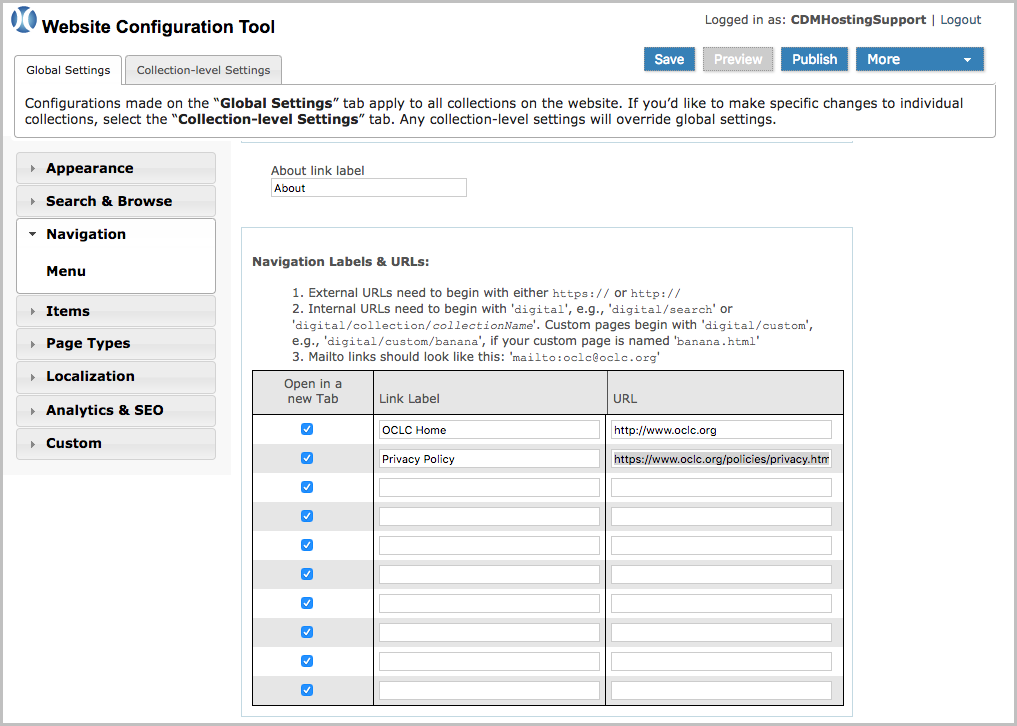
- Go to Global Settings > Navigation > Menu
- Under Navigation Labels & URLs, create a new entry that links to your institution's privacy policy. In the live example linked above, the Link Label is “Privacy Policy,” and the URL goes to https://policies.oclc.org/en/privacy...statement.html
- Save and Publish your Website Configuration Tool changes.
Link to a custom privacy policy page
If you do not have an external privacy policy to reference or if you have a custom privacy policy for your CONTENTdm site, you may prefer to add the policy to CONTENTdm as a custom page. This is easy to do using the built-in custom page functionality. See Creating a custom page for more information.
- Create an HTML page containing your privacy policy and include the YAML header to configure whether a header and footer should appear.
- Upload the custom HTML page in the Website Configuration Tool under Global Settings > Custom > Custom Pages.
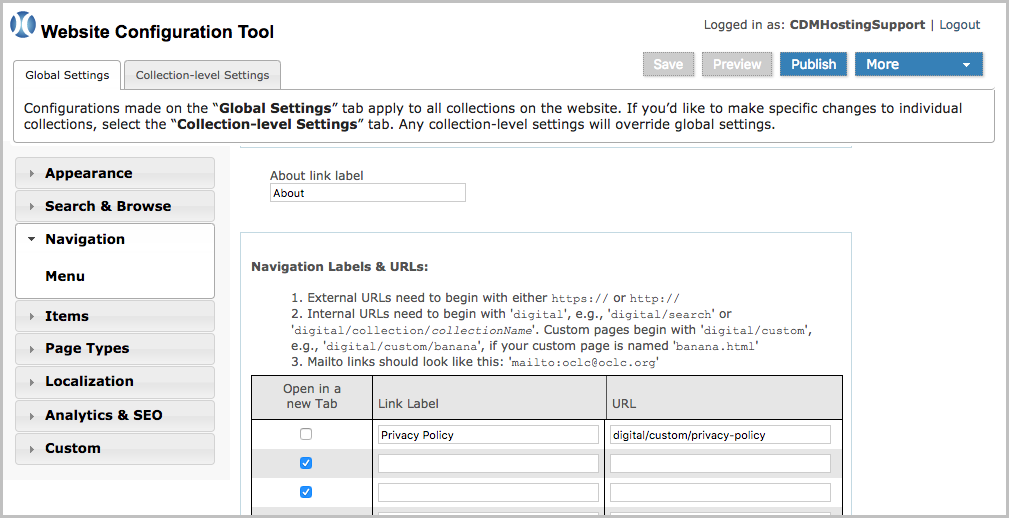
- Determine the relative URL of your custom page. In the live example linked above, the file name was “privacy-policy.html” and the resulting page link is “digital/custom/privacy-policy”.
- Under Global Settings > Navigation > Menu, add an entry to link to your custom privacy policy. For the live example, the Link Label is “Privacy Policy,” and the URL is “digital/custom/privacy-policy”.
- Save and Publish your Website Configuration Tool changes.
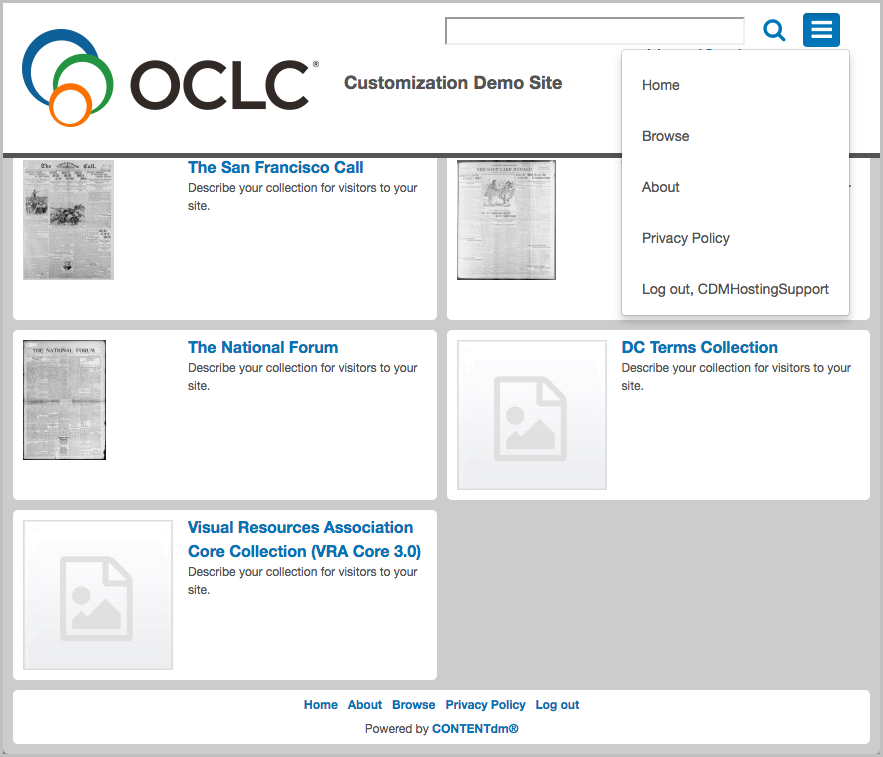
In both approaches to adding a privacy policy, the policy reference appears in the main site navigation menu. This means it appears in both the “hamburger” menu and the footer menu links. This also means the policy link will appear on every page of your website, including the end-user login page.