Learner guide: Searching WorldCat in FirstSearch
Course overview
FirstSearch offers a precise full-featured way to search the WorldCat database. It is primarily designed for library staff, researchers and expert searchers. The array of limits enables the searcher to screen out unwanted items and locate exact titles, additional formats and/or content. With FirstSearch, you will have a comprehensive view of your library holdings or holdings of libraries worldwide. FirstSearch is a great tool to help you address reference questions, make collection development decisions and meet your interlibrary loan demands.
This course is for library staff who want to refresh their searching skills in FirstSearch or those who are new to the service and want to explore the functionality available within it.
This course does not provide directions for customizing FirstSearch. For this information, please consult the documentation, Manage FirstSearch and the WorldCat Admin, found on the FirstSearch support site.
Note: This learner guide is designed to accompany the Searching WorldCat in FirstSearch course.
Search technique options
FirstSearch offers three search screen options. The recommended search screen depends on the information you or your patron have and the results sought.
Basic search
The Basic Search enables you to search a few of the main indexes in a database. Use the Basic Search if you need quick results using a simple search statement. The BOOLEAN operator “And” is understood between these indexes.
- Simple search (keyword, author, title, ISBN, year)
- Combined simple search (e. g. author and title)
- Limit results to Full-Text
Advanced search
The Advanced Search enables you to construct more complex search statements and to apply filters.
- Up to three search terms and three indexes
- Combine terms with BOOLEAN operators AND, NOT, OR
- Additional search limits and filters available
Expert search
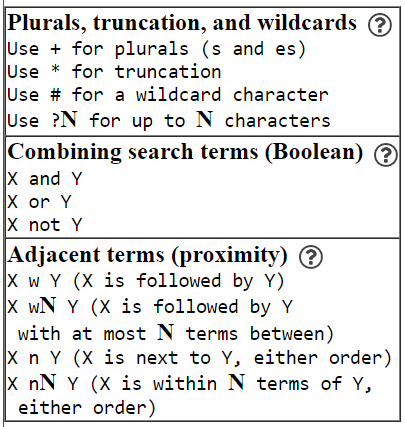
The Expert Search is designed for experienced searchers who prefer to enter logical search statements. A list of indexes and labels is provided in a single drop-down list. For example, to search for items by Barbara Kingsolver that do not include the term “vegetable” in the title, enter the index label for Name (au: ) and then enter the term “vegetable” with no index label. Instead, select the title index from the drop-down list. The title index label will apply only to the unlabeled term “vegetable”.
Reference information for constructing searches displays at the bottom of this screen.
Use search limits to narrow search
FirstSearch has no limit on the number of records returned from search. Setting search limits is a good way to narrow these results. Options include year, language, number of libraries (library holdings), and document type.
Limit to Date
| Limit to Date Option | Format |
|---|---|
| Single Year | YYYY |
| Open date range | Enter YYYY- ; 2010-2014 ; >1999 ; <1980 |
| Specific date range | Enter YYYY-YYYY |
| Greater than specific year | Enter >YYYY |
| Less than specific year | Enter <YYYY |
Document type limits
Document types classify items by format. These may be used to limit search results to a specific document type (bibliographic format). Hover over the type name to see what is included in that type.
| Document Type | Includes |
|---|---|
| Books | Books, pamphlets, technical reports, manuscripts and other written works. |
| Computer files | Computer software, numeric data, interactive multimedia, etc |
| Internet resources | Websites with online documents, graphics, systems or services |
| Maps | Maps, map manuscripts, globes, and other cartographic material. |
| Serial publications | Periodicals, newspapers, annuals, journals, |
| Musical scores | Printed music materials, including full score, choirs score, close score, etc. |
| Sound recordings | Both musical and non-musical sound recordings. |
| Visual materials | Projected media, Two-dimensional non-projected graphics, artifacts or kits |
Sub-type limits
Further limit your search results by audience, content, and/or format.
| Sub-type | Includes |
|---|---|
| Audience | Juvenile or Not-juvenile |
| Content | Fiction, non-fiction, biography, thesis, Biography, music, non-music |
| Format | Subtypes of document types, such as DVD, VHS, Large print, Braille, etc. |
Limit availability to
| Limit type | Function |
|---|---|
| Items in my library | Limits to items held by my library |
| A specific library (add OCLC symbol) | Limits to items held by another library's OCLC symbol |
| Shared print commitments only | Limits to items with shared print commitment |
Rank results
Use ranking (before you search) to organize the results of your search. Available ranking options vary by database and may include ranking by relevance or date. Ranking by number of libraries holding the item is also available in WorldCat.
Use Searching WorldCat Indexes
Searching WorldCat Indexes provides comprehensive information about indexes used to retrieve records from WorldCat. OCLC services, including cataloging and discovery/reference, use the same search indexes. Additionally, it shows MARC fields and subfields indexed for each WorldCat index, gives examples, and provides information about how each index works to help construct searches that retrieve the records you need.
Use Plurals, Wildcards, and Truncations
Use wildcard and truncation symbols to expand or focus searches. The system retrieves up to 300 matches to search terms when you use wildcards or truncation.
Note: For non-Latin script search terms, truncation can be used for Bengali, CJK (Chinese, Japanese, and Korean), Devanagari, Tamil, and Thai scripts only. For other supported non-Latin scripts, use browsing for automatic truncation.
| Name | Symbol | Function | Usage | Example |
|---|---|---|---|---|
| Plurals | + | Wildcard |
|
mammal+ retrieves mammal and mammals wax+ retrieves wax and waxes |
| Number sign | # | Wildcard |
|
wom#n retrieves woman and women |
| Question mark | ? | Wildcard |
|
encyclop?dia retrieves res?4tion retrieves respiration, restoration, reservation, etc. |
| Asterisk | * | Truncation |
|
connect* retrieves connect, connection, connectivity, etc. |
- See additional special search options here.
Work with search results
You can view expanded metadata in each entry, which can help you select individual items to view. The search results are unclustered so all records that match the search terms are included in the result set. These results can be limited and filtered once displayed. Furthermore, you can see results for related subjects and/or related authors.
View a detailed record
- To view an item from the List of Records, click the record title
- To return to the List of Records, click the List of Records link on the Results tab
Refine search
- Use refine search link on top of the screen to edit your search by adding more terms and limits
Limit results
- Click the Limit button and select from the database-specific limits for a moe focused result set
- Or, return to the search screen to add more terms and limits
Related authors and related subjects
- Click on related authors or related subjects button to broaden your search
- Mark selections from the list
- Click Search
- New search uses the OR operator between selected terms which often can result is a larger set of citations
- The first 50 records in the search results
- The first 20 records show
- Click on “show remaining authors” to see others.
- Each related subject author is displayed with a percentage number indicating the frequency of occurrence for each item.
Save search
After performing a search, click the Save Search link on the Results screen to save your search results. Those search results can then be re-used when you click the Previous Searches link on the FirstSearch Search screen.
Note: The Save Search feature is available to you after you use the My Account function to set up an account with FirstSearch.
Browse
- Available on Advanced and Expert search
- Browse the indexes to verify the correct spelling or format for search terms. Click the Index button (
 ) to access the Browse Index feature.
 - Browse subject headings to find additional terms that may apply to your search. Click the Subjects button (
 ) to access the Subject Headings list.
Note: This features is available only in certain databases.
Use results
Mark records, email, export, print, and save search results.
Mark records
-
Check the checkbox in front of each record to be marked
OR -
Click Mark All at the bottom of the screen to mark all records on one page of results.
- Select
 to go to the next page and
  to go to the previous page of results if you would like to mark records on other pages.
Note: You can mark a maximum of 100 records. - Click Clear Marks at the bottom of the screen if you would like to remove all marks you have made on all pages.
Note: The Clear Marks button removes marks from all previous and subsequent pages on the list of results. Use this button only when you want to remove all marks you have made. - After marking records, select the Marked Records link in the Navigation menu to go to the Marked Records screen. Here you can view, e-mail, export, or save the records you have marked.
View marked records
FirstSearch keeps track of the records you have marked during your current session.
| To... | Do this... |
|---|---|
| View all marked records | Select Marked Records in the Navigation Menu. The Marked Records screen is displayed. From this screen you can:
For more information, select Help (  ) on the Marked Records screen. ) on the Marked Records screen. |
Save marked records
-
After viewing marked records, click the Save Marked Records.
- Note: The Save Marked Records feature is available to you after you use the My Account function to set up an account with FirstSearch or sign in with your existing account.
- Records are saved to default list
- If desired, create new list
- Mark titles in saved records
- Move to new list
- Titles can be removed from the list by checking and selecting delete.
- Lists can be deleted by selecting the list from drop-down and choosing delete.
Email records
Email up to 100 brief or detailed records in either HTML or text format. If you have access to full text, you can email the full text of an item. The Send options displayed will depend on the screen from which you've selected the Email button ( ).
).
- Click the Email button () in the Control panel at the top or bottom of the screen.
- Select a Send option.
if you selected on this screen:you can send: List of Records All records on the current page of results
Marked records from the current database search only.Detailed Record Detailed Record
Marked RecordsMarked Records Marked Records Libraries that Own Item Holdings Record Full Text Fulltext Record
Marked Records
Note: If you selected the PDF or RealPage full text button for a record, use the viewer's print function to print the complete text of the record. - Select a Record detail:
- Brief record(s) - Sends brief bibliographic summaries
- Detailed record(s) - Sends full bibliographic record information
- Select Record format:
- Send as HTML
- Send as plain text (you must specify the maximum number of characters per line)
- Enter the recipient's email address in the To e-mail address: box.
Optionally, you can enter a send email in the Sender e-mail address: box, and you can enter your name in the Your full name: box. These are especially useful when you are sending email to another person. (Note that for security, your account number and IP address are also sent.)
You can supply an optional subject in the Subject: box. If the box is left empty, the title of the first record send is used. - Enter any notes you would like to include in the Notes: box.
- Select Send. You may be prompted to enter a password when sending full text.
Export records
- Click the export records (
 ) button
 - Choose export option
Print records
In FirstSearch you can print a list of records, an individual detailed record, a group of marked records, or the contents of a Saved Records folder. If you have access to full text, you can also print the complete text of an item.
- Select the Print button (
 ). FirstSearch reformats the screen to display only the main dialog. The Navigation menu and Control Panel are temporarily removed.
Note: If you have marked any records, the checkmarks will be visible in the printed copy. - When you are finished, select the Return button (
 ) at the top right or bottom right of the screen to return to the original format. The Navigation menu and Control Panel are displayed along with the main dialog.
 - Select the Prev () or Next () buttons to go to other pages you would like to print.
Test your knowledge
- What search screen would you use if you need quick results using a simple search statement such as an ISBN?
- Basic search screen
- Advanced search screen
- Expert search screen
- What search screen would you use if you are seeking records with a specific author and title?
- Basic search screen
- Advanced search screen
- Expert search screen
- What search screen would you use if you need guidance constructing a complex search using BOOLEAN operators, specific indexes and limits?
- Basic search screen
- Advanced search screen
- Expert search screen
- More Like This…Advanced Options shows you access points from the entire result set to use for a new search.
- True
- False
- The Browse feature enables you to…
- Verify the spelling of a search term
- Check the number of records that contain a search term
- Identify the best index to use with a search term
- Verify the format of a personal name, corporate name or title phrase
- All of the above
- What limits would you use to locate records for The Zookeeper's Wife by Diane Ackerman as a DVD?
- Material type: Visual materials
- Material subtype: DVD video
- Either of the above
- None of the above
- Use Related Subjects to create a new and broader search based on subjects in a current result set.
- True
- False
Additional information
- FirstSearch documentation
- OCLC FirstSearch: The basics
- Administrative module
- Open Access Content documentation
- Searching WorldCat Indexes
If you attended the Searching WorldCat in FirstSearch class or listened to the recording, please complete our brief evaluation. Your feedback is very important! Thank you!